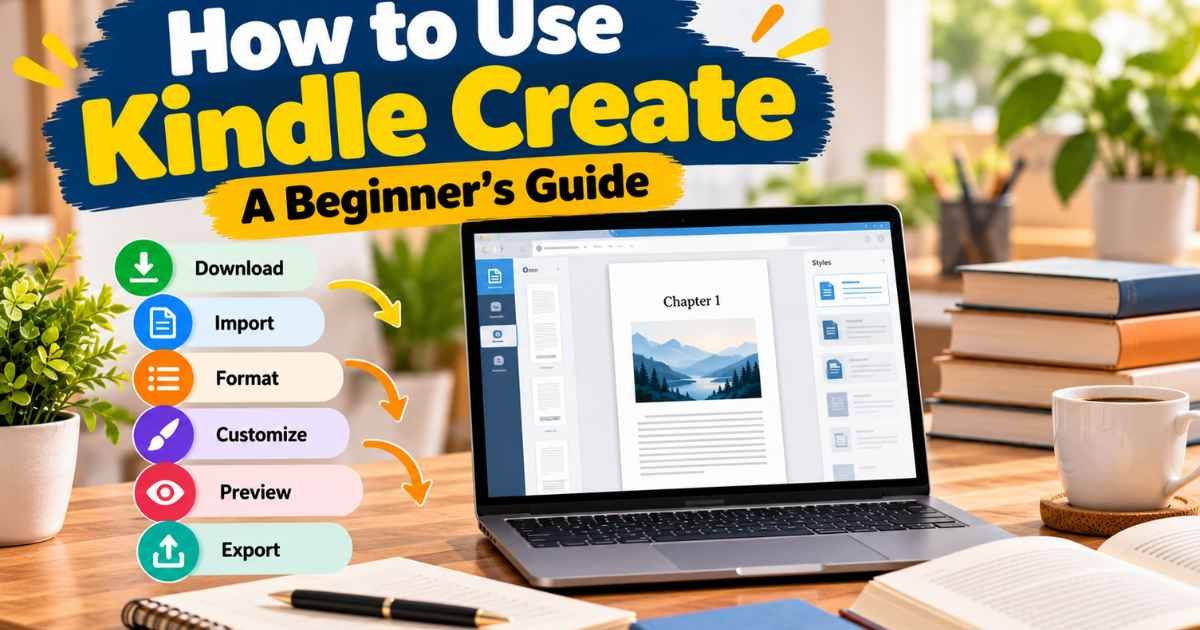
How to use Kindle Create is simple once you understand the basic steps. Download the app, import your finished manuscript, fix the chapter titles, add front and back matter, choose a theme, preview the book, and export a file for Kindle Direct Publishing (KDP). That is the whole process.
Kindle Create is Amazon’s formatting app for Windows and Mac. It works best for text-heavy books, such as novels, memoirs, and essays. It turns a finished Word file into a formatted book interior that KDP accepts. This guide explains how to use Kindle Create step by step, what the app cannot do, and how to solve common problems new authors may face.
What Is Kindle Create?
Kindle Create is a desktop app from Amazon for authors who publish with KDP. You bring in a finished manuscript. The app helps you shape it into a book that looks good on Kindle devices and in the free Kindle reading apps.
Here is what it can do:
- Format text-heavy manuscripts with ready-made themes
- Style chapter headings
- Build a table of contents
- Add front matter (like a title page) and back matter (like an author bio)
- Insert images and web links where the book type supports them
- Preview the book and export a file for KDP
The best workflow depends on the kind of book you are making. A novel and a cookbook need different paths, and we cover that below.
What Do You Need Before Using Kindle Create?
Get these things ready first:
- A finished manuscript. Kindle Create formats a book. It is not a place to write one. You can fix typos inside the app, but it is easier to finish the big edits first.
- A supported computer. Amazon’s Getting Started page lists Windows 10 or later, Intel Mac with macOS 10.15 or later, or Apple M1 with macOS 11 or later. It recommends 8 GB of RAM and says 4 GB is the minimum. Requirements can change, so check that page before you install.
- A compatible source file. Use DOC or DOCX for text-heavy books. Use PDF for image-heavy books and comics. Word, Apple Pages, and Google Docs can all export to DOCX.
- Your book details. Have the title, subtitle, and author name handy. If you want a copyright page or a dedication, write that text now.
- Images, if you use them. Kindle Create needs JPG or PNG files. Amazon recommends 300 pixels per inch so images stay sharp on Kindle devices.
- A KDP account. You need one to publish the finished file.
How to Download and Install Kindle Create
Only download the app from Amazon. Do not use third-party download sites.
- Open the official Kindle Create page or the Getting Started with Kindle Create help page.
- Choose the download for your system, Windows or Mac.
- Save the installer. On Windows, the file goes to your Downloads folder unless you pick another place.
- Open the installer and follow the wizard. You will read and accept the license agreement, then pick an install location or keep the default.
- Open Kindle Create. On Windows, press the Windows key, then choose Amazon, then Kindle Create. On a Mac, open Launchpad and choose Kindle Create.
- Click Create New to start a project.
If your antivirus software flags the download, Amazon says to check your antivirus or firewall settings. Amazon also says its tool downloads go through virus and spyware scanning.
How to Choose the Right Kindle Create Book Type
Kindle Create builds three kinds of books. Each Kindle book uses only one format, so pick before you import.
Reflowable eBooks come from DOC or DOCX files. Readers can change the text size, and the book works on all Kindle devices and the free Kindle apps. This is the right choice for novels, essays, and memoirs. It is also the path with themes, drop caps, and the most formatting tools.
Print Replica eBooks come from PDF files. They keep the look of the print page, which suits textbooks, travel guides, and cookbooks. The trade-off is that readers cannot resize the text, and the books only work on certain devices and apps. You can add audio, video, images, and links. Amazon has a separate guide to preparing Print Replica books.
Comic eBooks come from PDF files, or from several JPEG files. They use Guided View, which moves the reader from panel to panel. See Amazon’s guide to comic and kids’ eBooks.
Not every feature works in every type. Themes and drop caps, for example, belong to reflowable books. The steps below follow the reflowable path, since most first-time authors use it.
How to Import Your Manuscript into Kindle Create
Amazon’s guide to preparing reflowable and print books lists these steps:
- Open Kindle Create and click Create New. You can also press Ctrl + N (Cmd + N on a Mac).
- Choose Reflowable as the book type.
- Pick your book’s language from the Document Language list.
- Click Choose File, find your DOC or DOCX file, and click Open.
- Wait for the conversion. When the Import Successful box appears, click Continue.
- In the Automatic Chapter Titles box, click Get Started.
- Look over the Suggested Chapter Titles. Uncheck anything that is not a chapter heading, then click Accept Selected.
- Choose File > Save Project and save your work.
A clean manuscript makes this go smoothly. Use the same style for every chapter heading, and avoid stray page breaks. Kindle Create turns every page break in your file into a new section, so extra breaks create extra sections.
If a chapter seems to be missing, it is probably buried inside the chapter before it. Open that section, find the heading, and apply the Chapter Title element to it.
How to Format Your Book in Kindle Create
The app shows your book in three parts: Front Matter, Body, and Back Matter. Work from the front to the back.
Title page and author name. Click the plus sign next to Front Matter and choose Title Page. Fill in the title, the subtitle, and the author name. A publisher image is optional. Click Create Page and the app builds a formatted page. The same menu has copyright, dedication, epigraph, foreword, and more.
Chapter headings. When you accept the suggested chapter titles, Kindle Create styles them for you. You can also add a chapter subtitle from the Elements tab in the Properties pane.
First paragraphs. Click next to the first word of a chapter, then use the Chapter First Paragraph element. It removes the indent and adds a drop cap. Repeat this for each chapter. Turning on Cascade formatting changes for elements can save time, because a change in one chapter updates the matching elements everywhere.
Paragraphs and other text. Apply elements first, then make small changes on the Formatting tab. You can set indents and spacing, add separators between scenes, and use block quote or poem styles. Amazon asks authors to leave most body text on the defaults. Custom fonts on body text override each reader’s own settings, and readers dislike that.
Images. Right-click where the image should go and choose Insert Image. Add alt text so screen readers can describe it. Pick a size from Small (33%) to Full (100%), and choose how text wraps around it. Small images turn blurry if you enlarge them too much.
Web links. Highlight the text, right-click, choose Insert Hyperlink, and enter the address.
Back matter. Click the plus sign next to Backmatter. You can add an About the Author page, a Books by Author page with Amazon links, acknowledgments, and more.
Kindle Create has limits. Tables, lists, and footnotes cannot be edited in the app. If one needs a change, fix it in your word processor and bring the new content in. The app also does not support image captions.
How to Create a Table of Contents in Kindle Create
A reflowable eBook can have two kinds of table of contents. They are easy to mix up.
- The Kindle Interactive TOC lives in the Kindle menu. Readers can open it from anywhere in the book. It is built from the chapter titles you accept.
- The TOC page is a visible page near the front of the book, with a link to each chapter. It is optional.
To set both up:
- Check the detected chapter titles in the Suggested Chapter Titles box.
- Fix any mistakes. A section with an orange dot in the Contents pane is not in the TOC. Apply a title element, usually Chapter Title, to add it.
- To add a TOC page, click your first chapter in the Contents pane, click Insert, choose Table of Contents, and click OK.
- Check the chapter order. You can drag chapters to move them. Right-click to merge a chapter with the section before or after it, or to split one at the cursor.
- Open the previewer and look at its Table of Contents view. Make sure each entry matches the book.
The TOC page updates itself when you add, remove, or rename chapters. In a print book, Kindle Create removes the links and adds page numbers.
How to Choose a Kindle Create Theme
Themes set the fonts and layout for your chapter titles, first paragraphs, and other elements. Amazon says professional designers built them, and you cannot edit them.
Click the Theme button next to the Save button. Modern is the default. The tutorial also lists Classic, Cosmos, and Amour.
Try each one and look at a chapter opening, a normal page, and any page with an image. Check that headings look the same from chapter to chapter. Pick the one that fits your book. A calm theme often suits a memoir better than a decorative one.
A theme only styles elements you have marked. If a chapter heading is not tagged as a Chapter Title, the theme will not touch it.
How to Save Your Kindle Create Project
Kindle Create works with two files, and they do different jobs.
- KCB is your editable project file. Use it to make changes later.
- KPF is the publishable file. It is only for uploading to KDP.
Choose File > Save Project often. The app saves the KCB file and your other resources in the folder you pick. Back up that whole folder. Amazon does not keep a copy of your Kindle Create file, so a lost folder means starting over.
To reopen a project, click Open an Existing File and choose the KCB file. You can also use the Recents list or File > Open Recent.
How to Preview and Export Your Book
- Click the Preview button. You can switch device types, text size, and font.
- Flip through the whole book. Check chapter order, headings, images, and front matter. Make sure the text is readable on the white, black, mint, and sepia backgrounds.
- Fix what you find, then save your project again.
- Click Export. The Save File for Publication box opens.
- Pick a spot you will remember, such as a folder named for your book, and click Save.
- When packaging finishes, a confirmation box appears.
Kindle Create can export KPF or EPUB. Amazon recommends KPF for KDP. EPUB is only available for reflowable books, and it does not handle image bleeds, tall drop caps, or chapter start images the same way.
The built-in preview is a good quality check, but it does not replace the KDP Previewer. Use that one too before you publish.
How to Upload Your Kindle Create File to KDP
These steps give you the general path. The exact screens can change, so follow KDP’s on-screen prompts and the Upload and Preview Book Content help page.
- Sign in to KDP.
- Open your Bookshelf.
- Create a new title, or choose the existing one you want to update.
- Fill in the book details and publishing settings for the format you picked.
- Upload your exported .kpf file. Do not upload the .kcb file.
- Add your cover. An eBook needs a cover image that meets KDP’s criteria. A paperback has its own cover requirements.
- Open the Previewer for your format. Print books use the KDP Print Previewer.
- Fix any problems, re-export if needed, and upload the new file before you submit.
eBooks and print books have different setups. A paperback needs a trim size and a print-ready cover, and you can only see its headers, footers, and page numbers in the KDP Print Previewer after you upload. Do not assume the eBook steps cover both.
Common Kindle Create Problems and Solutions
Kindle Create will not open
Amazon’s pages do not list a fix for launch problems. As a general step, download the newest version from the official page and install it again. If that fails, contact KDP Support.
The manuscript will not import
Amazon asks you to check that the app was updated within the last three months. You can find the date under Help > About Kindle Create. Then match your error to these fixes:
- Invalid or unsupported file: Try another version of the file, or save it as DOC, DOCX, or PDF.
- File name problems: Keep the name under 250 characters and remove special characters like quotes, pound signs, and question marks.
- Password-protected file: Remove the password in Word.
- Corrupt file: Save a copy as a Word 97-2003 (.doc) file and import that.
- Generic error: If the file is on a cloud drive or flash drive, copy it to your desktop first.
- Tables: Embedded tables can trigger errors. Amazon suggests replacing them with text boxes.
Chapter headings are detected incorrectly
Uncheck wrong entries in the Suggested Chapter Titles box. Tag missed headings with Chapter Title. Use merge and split to fix sections that are joined or cut in the wrong place.
The table of contents is incomplete
Look for orange dots in the Contents pane. Those sections have no title element. Apply Chapter Title and the entry appears.
Images look wrong
Use JPG or PNG. Do not stretch a small image to full size. Inline images from your Word file cannot be edited in Kindle Create, so delete them in the source and insert them again inside the app.
The exported file will not save or upload
If the export fails, Amazon suggests this: make a new folder on your desktop, open your KCB file, use File > Save Project As to save it in that folder under a new name, then click Export and save the file there too. For upload trouble, double-check that you picked the .kpf file, then contact KDP Support if it still fails.
Formatting changes after previewing
Devices can show the same book a little differently, which is why the preview lets you switch devices. The previewer may also show a header on an eBook that the final eBook will not have. For print, trust the KDP Print Previewer over the app’s preview.
The project file is missing
Check Recents, File > Open Recent, and the folder you saved to. Search your computer for files ending in .kcb. Amazon does not store your project, so if it is gone, you will need to import your source file again and redo the formatting. Back up the folder next time.
When a problem will not go away, check the Kindle Create Help Overview or contact KDP Support.
Kindle Create Limitations You Should Know
- Tables, lists, and footnotes cannot be edited in the app. Change them in your source file.
- Inline images and image captions are not supported.
- Reflowable and Print Replica books are not supported in Japanese.
- Print Replica books do not let readers resize text, and they only work on certain devices.
- EPUB export lacks some features, so Amazon recommends KPF.
- Headers and footers only apply to paperbacks, and you can only preview print layout in KDP after upload.
Kindle Create does not replace every book-formatting tool. It is a good fit for a finished, text-heavy manuscript. Books with complex layouts may need a different approach.
Frequently Asked Questions
Is Kindle Create free to use?
Amazon has described it as a free application. The KDP help pages do not list a price, so confirm on the official download page.
How do I download Kindle Create?
Go to Amazon’s official Kindle Create page or the Getting Started help page. Choose the Windows or Mac installer and follow the prompts.
Can I use Kindle Create for paperback books?
Yes, for reflowable books made from DOC or DOCX files. You can use the same project for eBook and print, and you choose the trim size on KDP. Amazon’s feature chart lists preparing an eBook and paperback from one file as a pre-release feature, so read the current help page before you rely on it. Print Replica and comic books are eBook formats.
What file formats does Kindle Create support?
You can import DOC, DOCX, and PDF. You can export KPF, or EPUB for reflowable books. Images should be JPG or PNG.
Can I edit my book after exporting it?
Yes. Open the KCB project file, make your changes, and export a new KPF. The KPF itself is only for publishing.
What is the difference between KCB and KPF files?
KCB is the editable work file. KPF is the file you upload to KDP.
Does Kindle Create automatically create a table of contents?
It finds likely chapter titles and builds the Kindle Interactive TOC from the ones you accept. The visible TOC page is optional, and you add it yourself.
Can I use Kindle Create for cookbooks?
It depends on the layout. Amazon points image-heavy books with complex formatting, including cookbooks, to the Print Replica path. That means a PDF source, no text resizing, and support on only some devices. The reflowable path cannot edit tables or lists, which many cookbooks use.
Can I upload a Kindle Create file directly to KDP?
Yes. Amazon says to upload the .kpf file to KDP.
What should I do if Kindle Create does not work?
Update the app, check the import tips above, move your file to the desktop, and rename it without special characters. If nothing helps, contact KDP Support.
Final Thoughts
The workflow is short. Download Kindle Create, import a compatible manuscript, format the book, review it in the preview, export the KPF, and finish the final checks in KDP.
Amazon updates its tools from time to time. If a button or menu does not match this guide, the Kindle Create tutorial and the official help pages are the best place to check.