AI tools have made video creation easier for beginners. But before you learn how to make AI videos using YouTube clips, you need to answer one question first. Are you allowed to use the footage?
A video that is public on YouTube is not free to reuse. Someone made it, and that person or company usually owns the rights. This guide gives you a simple workflow for AI-assisted videos, and it shows you how to check your footage before you edit anything.
You will learn what AI can help with, which clips are safe to use, and how to go from idea to finished video. Copyright rules differ by country, and each platform adds its own rules. This article is general education, not legal advice.
What Are AI Videos?
An AI video is a video where AI helps with part of the work. A person still makes the choices.
AI can help write a script. It can turn text into a spoken voiceover. It can make captions from speech, suggest a scene plan, or trim a long clip. Some tools can remove a background or improve video quality.
Some videos are fully generated by AI. Others are normal videos that use AI tools for editing. This guide is about the second kind. You start with real footage, and AI helps you shape it.
Can You Use YouTube Clips in AI Videos?
Not automatically. Anyone can watch a YouTube video, but that does not give them the right to copy it into their own project.
There are four situations where using footage is on solid ground.
Content You Own
If you filmed it, you usually own it. That includes your own channel uploads, phone footage, and screen recordings of your own work.
Check the extras, though. If a song plays in the background of your clip, or another person’s work appears in it, those parts may belong to someone else.
Content With Permission
You can use another person’s video if the owner says yes. Ask clearly. Explain what you will do with the clip, where you will publish it, and for how long.
Keep the answer in writing. An email is fine. If a problem comes up later, you will have proof.
Licensed and Reusable Content
Some creators share their work under a license that allows reuse. Stock footage sites sell clips under license too.
Licenses are not all the same. One may ask for credit. Another may ban commercial use. A third may not allow edits. Always read the real terms for the clip you want.
Public-Domain Content
Public domain means copyright no longer applies to a work. This can happen when copyright runs out, or when a creator gives up their rights.
The rules depend on the country. A work that is public domain in one place may still be protected in another. Confirm it from a reliable source. Do not guess.
How to Make AI Videos Using YouTube Clips
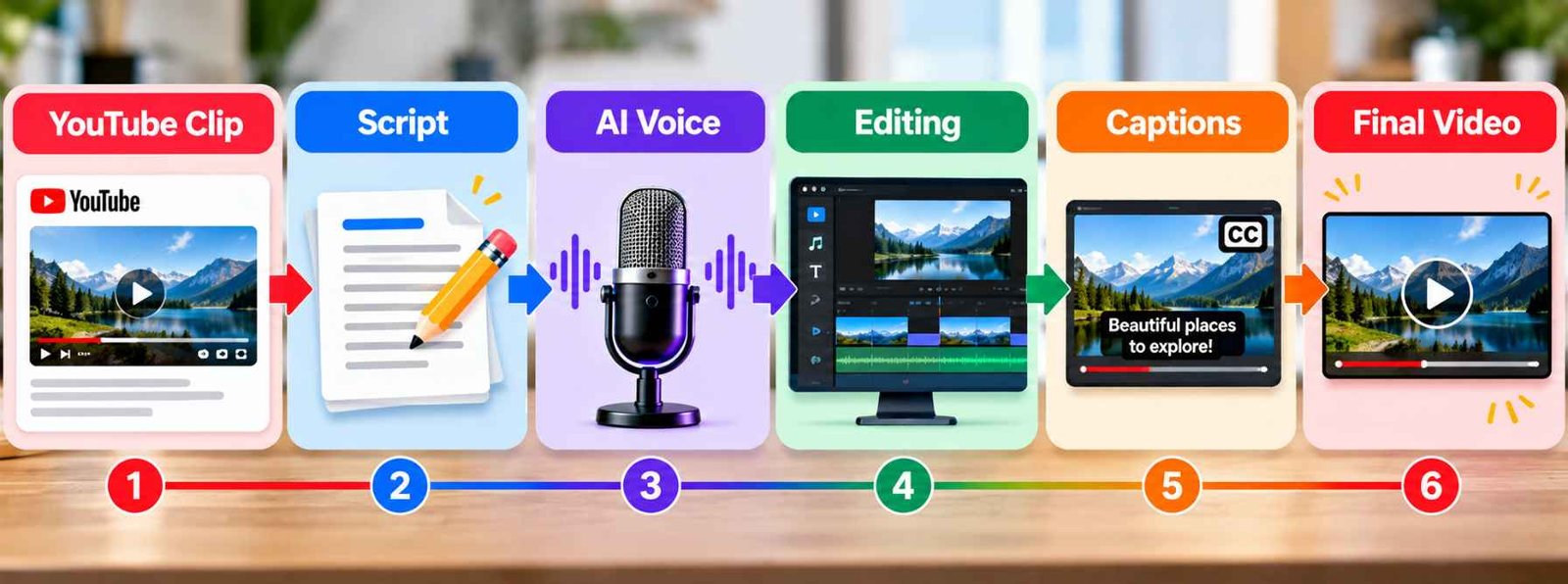
Here is a beginner workflow with eight steps. Do them in order. The rights check comes first for a reason.
Step 1: Choose a Video You Can Legally Use
Start with ownership. Ask three questions.
- Did I make this footage myself?
- Do I have written permission from the owner?
- Does a license clearly allow my kind of use?
If you cannot say yes to at least one, pick different footage. Also check what is inside the clip. Music, logos, and other people’s artwork can carry their own rights.
Step 2: Collect and Organize Your Clips
Make one folder for the project. Inside it, keep sub-folders for video, audio, images, and notes.
Name your files so you can find them later. “water-tap-own-footage.mp4” is better than “clip1.mp4.” Next to each file, write down where it came from and what license or permission covers it. This one habit saves a lot of stress at the review stage.
Step 3: Choose an AI Video Tool
AI tools come in several types. Many products mix a few types together, so read what each one actually offers before you choose.
- Script tools help you draft outlines and narration.
- Video editors help you cut, arrange, and export clips.
- Voiceover tools turn text into speech.
- Caption tools turn speech into on-screen text.
- Planning tools help you map out scenes.
- Background removal tools separate a subject from its surroundings.
- Enhancement tools can sharpen or clean up video and audio.
- Repurposing tools help turn one video into shorter versions.
Features and prices change often, so check each tool’s own website. Also read its terms. Some tools have rules about commercial use of their voices and output. No single tool is best for everyone. Pick the one that fits your project and your budget.
Step 4: Create a Script or Video Plan
Decide what your video is about and who it is for. Then write a short outline: a hook, the main points, and an ending.
AI can give you a first draft of an outline or narration. Treat it as a starting point. Rewrite it in your own words, fix any facts that look wrong, and add your own view. A script you have shaped yourself sounds better and is more original.
Step 5: Edit and Arrange the Clips
Now build the video. Put your clips in an order that matches your script. Trim the slow parts, such as long pauses or repeated shots.
Keep each clip only as long as it helps the story. Short, clear cuts are easier to watch than a long stream of footage. Many AI editors can suggest cuts or scene breaks. Watch them and accept only the ones that make sense.
Step 6: Add AI Voiceover and Captions
An AI voice can read your script if you do not want to record your own. Listen to the whole thing. Look for odd pauses or wrong pronunciations, and fix them.
Captions help people who are deaf or hard of hearing. They also help viewers who watch with the sound off. Auto-generated captions are often close but not perfect, so read them and fix the mistakes.
Step 7: Add Music and Visual Effects
Only use music you own or have a license for. Royalty-free does not always mean free of rules, so read the terms. Some tracks need credit.
Keep effects simple. A title card, a smooth transition, and a light color fix are usually enough. Too many effects distract from the message.
Step 8: Review the Video Before Publishing
Watch the finished video from start to end. Then go through this list.
- Copyright: Do you have the right to use every clip, song, and image?
- Accuracy: Are the facts in your script correct?
- Audio: Is the voice clear and the music not too loud?
- Captions: Are the words right and easy to read?
- Video quality: Is the picture sharp and the export clean?
- Licensing: Did you follow every credit rule?
- Original contribution: Did you add something of your own?
A Simple Example
This example is fictional and only for learning. Imagine a video called “Three Easy Ways to Save Water at Home.”
- Topic: You pick a clear topic that helps a beginner audience.
- Legally usable clips: You film your own kitchen tap. A friend agrees in writing to let you use their garden footage. You also get a stock clip whose license allows edits.
- Script: An AI tool drafts an outline. You rewrite it in your own voice and check the facts.
- AI voice: You choose a voice, and you check the tool’s terms first.
- Editing: You arrange the clips in the order of your script and trim the extras.
- Captions: You generate captions and fix the errors.
- Final review: You go through the checklist from Step 8.
- Publish: You upload with a clear title and description, and you add any credits the licenses ask for.
How to Find YouTube Clips You Can Reuse
You do not have to guess. There are a few practical ways to check.
Check the Video License
YouTube lets uploaders pick a license. The license is often shown in the expanded video description. YouTube’s help pages explain the current options, so check them.
A label is not the end of the check. Read the actual license terms. A “reuse allowed” label only covers what the uploader owns. The video may still include music or clips from other people. If something looks unclear, do not use it.
Ask the Creator for Permission
If the license is unclear, or the video is not marked for reuse, ask the owner. Send a short, polite message. Say who you are, which clip you want, and how you will use it.
If they say no, or do not reply, move on. Silence is not permission.
Use Properly Licensed Footage
Stock footage libraries and other licensed sources are often the easiest path. You know the terms before you start. Compare what each license allows, such as commercial use, editing, and credit. Keep a copy of the license with your project files.
Common Mistakes to Avoid
Using Copyrighted Clips Without Permission
This is the biggest one. Using someone’s clip without a right to do so can lead to takedowns, strikes, or worse. Do not treat “everyone does it” as a plan.
Assuming AI Editing Makes Content Copyright-Free
It does not. Cropping, mirroring, speeding up, adding filters, changing colors, adding captions, or adding an AI voice does not turn copyrighted footage into free footage. The clip still belongs to its owner.
Removing Watermarks
Do not remove a watermark from someone else’s video. A watermark shows who owns the work. Removing it can hide the source, and it may break platform rules or the law. If a watermark is in your way, ask the owner for a clean version or choose different footage.
Using Too Much Reused Footage
Even with permission, a video made mostly of other people’s clips gives viewers little new. Use reused footage in small parts that support your own work.
Publishing Videos Without Adding Original Value
Ask yourself what your video gives that the original does not. If the answer is “nothing,” rethink it. Add your own explanation, opinion, teaching, or story. Repackaging someone else’s footage is not real creative work.
Tips for Making Better AI Videos
Keep Your Videos Original
Build the video around your own idea. Use outside clips as support, not as the main event.
Add Your Own Commentary
Your view is what makes a video worth watching. Explain, compare, or teach. Say why a moment matters.
Use Relevant Captions
Write captions that match what is said. Keep lines short so they are easy to read on a phone.
Keep the Editing Clear and Simple
Choose one clean style and keep it. Simple fonts, steady pacing, and clear sound beat fancy effects.
Use AI as a Creative Assistant
Let AI handle the slow jobs, such as rough drafts, captions, and cleanup. You make the final calls. Check every AI result before it goes into your video.
Can You Monetize AI Videos Using YouTube Clips?
Maybe, but nobody can promise it. Several things matter.
- Rights to the footage: You need the right to use, and earn from, every clip.
- Original contribution: Your own work has to be a real part of the video.
- Platform policies: YouTube has its own rules, and they can change.
- Content quality: Videos that are clear and useful tend to serve viewers better.
- Reused-content rules: Platforms may limit videos that mostly repeat other people’s material.
- Copyright status: A claim on your video can affect what you can earn.
Adding an AI voice does not automatically make reused content eligible for monetization. Read the current YouTube policies before you plan around income.
Frequently Asked Questions
Can I use YouTube clips in an AI video?
Yes, if you own the clips, have permission, or have a license that covers your use. Being on YouTube is not enough by itself.
Is it legal to use someone else’s YouTube video?
It depends on the rights. Without permission or a license, using it can be a copyright problem. The rules vary by country, so check your local law if you are unsure.
Can AI-generated videos use copyrighted clips?
An AI tool does not change who owns a clip. If the footage is copyrighted, you still need the right to use it.
How can I find videos that allow reuse?
Check the license in the video description. Ask the creator directly. Or use stock footage and other sources with clear licenses. Read the terms each time.
Can I monetize a video made with YouTube clips?
It depends on your rights, your original work, and the platform’s current rules. There is no promise of income.
Does adding AI voiceover make a YouTube clip copyright-free?
No. A new voice does not change who owns the footage. You still need permission or a license.
Conclusion
Here is the short version of how to make AI videos using YouTube clips. Start with footage you can legally use. Organize your files, pick a tool that fits, write a plan, edit your clips, add a voiceover and captions, and finish with a careful review.
AI can save time on many of these steps. But it cannot give you rights you do not have. Use footage you own, have permission to use, or are properly licensed to reuse, and put your own ideas at the center of the video.