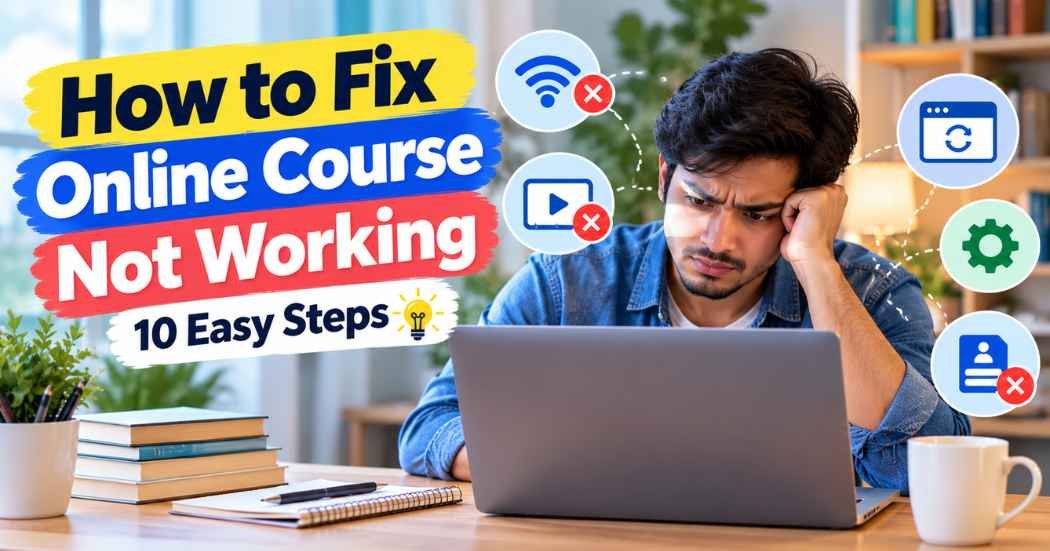
An online course can stop working because of weak internet, a browser problem, a login error, a video that will not play, or a platform outage.
Knowing how to fix online course not working problems can save you time and stress, even if you are not good with technology.
This guide helps you find the cause and try simple fixes, one step at a time.
Why Is Your Online Course Not Working?
Most online class technical issues come from a small list of causes. The good news is that many of them are easy to fix at home.
Here are the common ones:
- Your internet connection is slow or has dropped.
- Your browser is out of date or has old saved data.
- Your login details are wrong or have changed.
- A browser extension is blocking part of the page.
- The course website or learning platform is having an outage.
- Your account does not have access to the lesson yet.
You may notice different signs. Maybe your online course is not loading at all. Maybe the course website is not opening, or the page opens but the lessons stay blank. Maybe the videos freeze, or the platform keeps asking you to sign in again.
The sign you see gives you a clue. A video that will not play points to a different fix than a login error. Still, the steps below work in a smart order, from the quickest fix to the ones that need help from the course provider.
How to Fix an Online Course That Is Not Working
If you want to know how to fix an online course that is not working, start with step 1 and move down the list. Try one step at a time, then check the course again. Stop when it works.
1. Check Your Internet Connection
A weak connection is the most common reason for e-learning problems. Open a different website, like a news page. If that page is slow too, the problem is your internet and not the course.
Try these quick fixes:
- Move closer to your Wi-Fi router.
- Unplug your router for about 30 seconds, then plug it back in.
- Pause large downloads or streaming on other devices.
- Switch to mobile data to see if the course works there.
If your connection is often slow, read about how to improve internet speed for more ideas.
2. Refresh the Course Website
Sometimes a page just fails to load right. A refresh can fix that in a few seconds.
Click the refresh button in your browser. You can also press Ctrl + R on Windows or Command + R on a Mac. If the page still looks wrong, try a hard refresh. On Windows, press Ctrl + Shift + R. On a Mac, press Command + Shift + R.
Still stuck? Close the tab, wait a minute, and open the course again from the main website.
3. Clear Your Browser Cache and Cookies
Your browser saves small pieces of website data so pages load faster. Over time, that saved data can get old or damaged. Then a course page may load badly or not at all.
Here is the basic way to clear it:
- Open your browser settings.
- Find the privacy or history section.
- Choose the option to clear browsing data.
- Select cached images and files, and cookies.
- Pick a time range, then confirm.
One warning before you start. Clearing cookies may sign you out of websites, including your course. Make sure you know your password first. The exact menu names change between browsers, so see how to clear browser cache and cookies for your browser.
4. Update Your Web Browser
An old browser may not work well with newer course websites. It can also miss security fixes.
Open your browser’s settings and look for an “About” section. Most browsers check for updates there. If an update is waiting, install it and restart the browser.
Some course providers list the browsers they support on their help pages. It is worth a quick look. If you are not sure which one to use, this guide on the best browsers for online learning can help you pick.
5. Fix Online Course Video Playback Problems
Online course videos not playing is one of the most common complaints. The cause is often simple.
Try this checklist:
- Check that your device volume is up and the video is not muted.
- Lower the video quality in the player settings if there is one.
- Close other tabs that may be playing sound or video.
- Pause the video for a minute, then press play again.
- Restart your device.
Example: a lesson shows a spinning circle and never starts. You lower the quality, close five other tabs, and refresh. Smaller video and fewer open tabs often help on a slow connection. For more help, see how to fix video playback problems.
6. Check Your Course Login Details
Online course login problems often come from small mistakes. A typed letter can be wrong. Caps Lock can be on. Or you may be using a different email than the one you used to buy the course.
Check these things:
- Is your email address spelled correctly?
- Is Caps Lock off?
- Did you buy the course with another email?
- Did a saved password fill in an old one?
If you are still locked out, use the “Forgot password” link and follow the steps in your email. Look in your spam folder if the message does not show up.
7. Disable Browser Extensions Temporarily
Extensions add tools to your browser. Ad blockers, VPN add-ons, and privacy tools can sometimes block parts of a course page. Video players are a common target.
Turn off your extensions one at a time, then reload the course. If the course works, you have found the one causing trouble. You can leave it off for that site or look for a setting that allows the course website.
A private or incognito window is another quick test, since many browsers turn extensions off there by default. Keep your antivirus and other security software on. Do not turn it off for good just to open a course.
8. Try Another Browser or Device
If the course fails in one place, test another. This tells you whether the problem is your browser, your device, or the course itself.
For example, if the lessons will not open in Chrome, try Firefox or Edge. If your laptop gives you errors, try your phone or a tablet. Some platforms also have a mobile app that may work better than the website.
If the course works on another device, the problem is likely on your first device. If it fails everywhere, the cause is more likely the account or the platform.
9. Check Whether the Learning Platform Is Down
Sometimes the problem is not on your side at all. An online learning platform not working for everyone is called an outage.
Here are ways to check:
- Look for a status page on the provider’s website or help center.
- Check the provider’s official social media account for updates.
- Ask classmates or other students if they see the same error.
If many people have the same problem, wait a little while and try again. Refreshing again and again will not fix a platform outage.
10. Contact the Course Provider’s Support Team
If the simple fixes did not work, it is time to ask for help. Course access, payment, and account issues usually need the provider to fix them.
Send a clear message. Include:
- The name of the course
- The email on your account
- What you see on the screen, or the exact error message
- Your device and browser
- A screenshot, if you can take one
- The steps you already tried
A message like this helps the support team find the problem faster, because they do not have to ask you the same questions first.
How to Prevent Online Course Problems in the Future
You cannot stop every problem, but a few habits make trouble less likely.
- Test your course a day before a live class or a deadline.
- Keep your browser up to date.
- Save your login details somewhere safe, like a password manager.
- Restart your device before a live session.
- Close extra tabs and apps while you study.
- Keep the support email or help page for your course handy.
Good study habits help too. If you are new to learning online, these online learning tips for beginners are a good place to start. You can also read about how to stay productive while studying online.
Choosing a good course matters as well. A course on a well-built site usually has clearer help pages and faster support. See the best online learning platforms or learn how to choose an online course before you buy.
When Should You Contact Technical Support?
Do not wait too long. Contact support if:
- You tried the steps above and nothing changed.
- You paid for the course but cannot get in.
- You were charged twice, or the payment looks wrong.
- Your account is locked.
- Lessons, files, or quizzes are missing.
- The same error shows up on every browser and device.
These problems are usually on the provider’s side. You cannot fix them with a refresh or a new browser.
Frequently Asked Questions
Why is my online course not loading?
The most common causes are a weak internet connection, old saved browser data, or an outdated browser. Check your internet first, then refresh the page and clear your cache. If the course still will not open, the platform may be down.
Why are online course videos not playing?
A slow connection is a frequent cause. Lower the video quality, close other tabs, and check your sound settings. A browser extension or an old browser can also block videos. Try another browser or device to find out which one is the problem.
Why can I not access my purchased course?
You may be logged in with a different email than the one you used to buy it. The payment may also still be processing. If those do not explain it, contact the course provider. They can check your order and fix account access.
Can browser cache cause online course problems?
Yes, it can. Saved cache data can get old or damaged, which may cause blank pages or loading errors. Clearing your cache and cookies often helps. Remember that clearing cookies may sign you out of websites.
What should I do if an online learning platform is down?
Check the provider’s status page or official social media account. If others report the same issue, wait and try again later. Do not clear your data or change settings, since that will not help. Contact support if the outage lasts a long time.
Final Thoughts
Now you know how to fix online course not working problems without needing any technical skills. Start with the simplest fixes first: check your internet, refresh the page, clear your cache, and update your browser. Then move on to your login details, extensions, and other devices.
Not every problem has the same fix. If nothing works, or if the issue is about access or payment, the course provider is the right place to go. For more help, read these online course troubleshooting tips.
Pick the first step on the list and try it today. If the problem stays, send a clear message to the course provider’s support team and share what you already tried.