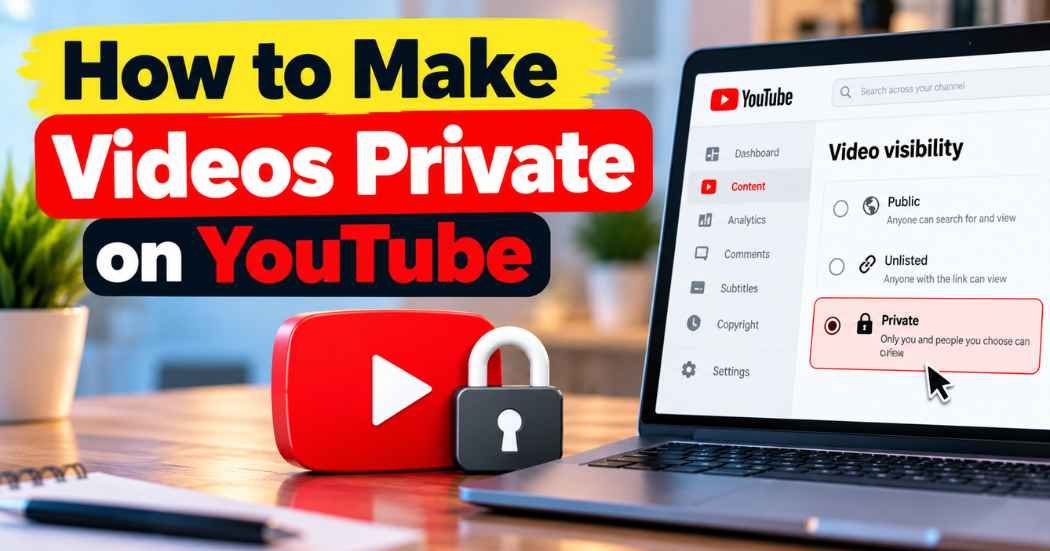
Want to hide a video from the public? Learning how to make videos private on YouTube takes about a minute.
You can do it on a computer or a phone, and you can switch the video back to public at any time.
This guide shows each step, explains who can still watch, and covers the problems people run into most.
What Does a Private YouTube Video Mean?
A private video is a video that only you can watch. You can also invite a small group of people by email. They must sign in with the Google account you invited.
Everyone else is locked out. A private video does not show up in search results, on your channel page, or in recommendations. If someone opens an old link, they see a message that the video is private.
Creators use private videos for drafts, family clips, and old uploads they want to fix. New creators often keep their first videos private while they learn the tools. If you plan to start a YouTube channel, this setting gives you a safe place to practice.
Private vs Unlisted vs Public: What Is the Difference?
YouTube gives every video one of three visibility settings. Here is how they compare.
| Setting | Who can watch | Shows in search | Shows on your channel |
| Public | Anyone | Yes | Yes |
| Unlisted | Anyone with the link | No | No |
| Private | You and people you invite | No | No |
Public is open to the world. Unlisted hides the video from search, but anyone who gets the link can watch it and pass the link on. Private is the tightest setting. A link alone does not work.
Pick unlisted when you want to share a video with many people fast. Pick private when the video is personal, unfinished, or not meant for a crowd.
One more thing. When you schedule a video, YouTube keeps it private until the time you pick.
How to Make a YouTube Video Private on a Computer
You will use YouTube Studio. This is the page where creators manage their videos. YouTube changes its layout from time to time, so a button may look different or sit in a new spot. The steps below still follow the same path.
- Go to YouTube and sign in to the account that owns the video.
- Click your profile picture in the top right corner.
- Click YouTube Studio.
- Click Content in the left menu.
- Find the video you want to hide.
- Click the box under Visibility. It will say Public or Unlisted.
- Choose Private.
- Click Save.
You can also click the video title to open its details page. Scroll to Visibility, choose Private, and click Save.
How to Share a Private Video With Specific People
- Open the Visibility box for your video.
- Choose Private.
- Click Share privately.
- Type the email addresses of the people you want to invite.
- Pick whether YouTube should email them.
- Click Save.
YouTube lets you invite up to 50 people. Each person needs to sign in with the Google account that matches the email you typed. If you turned off the email notice, send them the video link yourself.
How to Change YouTube Video Privacy Settings on a Phone
You have two choices on a phone. Use the YouTube app, or use the YouTube Studio app. The steps are close on iPhone and Android.
Using the YouTube App
- Open the YouTube app and sign in.
- Tap You at the bottom right.
- Tap Your videos.
- Tap the three dots next to the video.
- Tap Edit.
- Tap the Privacy or Visibility setting.
- Choose Private.
- Tap Save.
Using the YouTube Studio App
- Open the YouTube Studio app.
- Tap Content.
- Tap the video.
- Tap the pencil icon.
- Tap Visibility.
- Choose Private.
- Tap the back arrow, then tap Save.
The names of some buttons may differ a little, depending on your app version.
How to Make Multiple YouTube Videos Private at Once
Do you have a lot of old videos to hide? You do not need to change them one by one. Use the bulk edit tool on a computer.
- Open YouTube Studio and click Content.
- Tick the box on the left of each video you want to change.
- Click Edit at the top of the list.
- Choose Visibility.
- Select Private.
- Confirm the change, then click Update videos.
To pick every video on the page, tick the box at the very top of the list. Studio only shows a set number of videos per page. If you have many, raise the rows per page at the bottom first. You can also filter the list by visibility to find all your public videos quickly.
YouTube Shorts work the same way. If you post YouTube Shorts, they appear in the same Content list, and you can change them with the same steps.
What Happens When You Make a Video Private
Here is what changes the moment you save.
- The public can no longer watch the video.
- Old links stop working for anyone who was not invited.
- The video disappears from search and from your channel page.
- Copies of the video embedded on other websites stop playing for visitors.
- The video is hidden from other people inside your public playlists.
- The video cannot earn ad revenue, since the public cannot watch it.
Making a video private does not delete it. YouTube keeps the video, and you can make it public again whenever you like.
Who Can Watch a Private YouTube Video?
Only two groups can watch. The first is you, while signed in to your account. The second is the people you invited, while signed in with the invited email.
That is a strong lock, but it is not magic. A few limits are worth knowing.
- If someone already watched the video, they may have saved or recorded it before you changed the setting. You cannot take that back.
- A person you invited can record their screen or share what they saw.
- Search engines may show an old title or picture for a short time after the change.
- YouTube can still review a private video. If it breaks the rules or a copyright claim hits it, the video can be restricted or removed.
So treat private as “hidden from the public,” not “impossible for anyone to ever see.” If a video holds truly sensitive material, think twice before uploading it anywhere online.
Common YouTube Privacy Setting Problems and How to Fix Them
I Cannot Find the Private Option or the Setting Will Not Save
First, check that you are signed in to the account that owns the video. Many people have more than one Google account, and it is easy to pick the wrong one. Then refresh the page, try another browser, or update the app. If the video is still processing, wait until it finishes and try again.
The Video Still Shows Up in Search or on a Website
Changes can take a little time to spread. Search results may keep an old snapshot for a few days. A website that embedded your video will show an error once the page reloads. If the video still appears after a few days, open it in a private browser window to check what the public sees.
The Person I Invited Cannot Watch the Video
This is almost always an account mismatch. They may be signed in with a different Google account than the one you invited. Ask them to sign in with the exact email you typed. If needed, add that email again and send the video link yourself.
The Visibility Setting Is Locked
YouTube can limit a video for a policy or copyright reason. In YouTube Studio, open Content and look at the Restrictions column. Click the video to see the reason and your options.
I Want All My New Uploads to Start as Private
You can set this once. Open YouTube Studio, go to Settings, then Upload defaults, and set the default visibility to Private. This helps if you often upload a video to YouTube and like to review it before anyone sees it.
Tips Before You Change a Video’s Privacy
- Download a copy of the video for your own records if it matters to you.
- Check your public playlists and any website where the video is embedded.
- Tell your team or clients if they rely on an old link.
- If you plan to publish later, remember that a private video collects no new public views. When you are ready to get more views on YouTube, switch it back to public and share it again.
Frequently Asked Questions
Can I make a YouTube video private after it is uploaded?
Yes. You can change the visibility of any video at any time. Open YouTube Studio, go to Content, click the Visibility box, choose Private, and save. The video stays on your account, and you can make it public again later.
Can people find a private video by searching?
No. A private video does not appear in YouTube search, on your channel, or in recommendations. Only you and the people you invited can open it. Search engines may keep an old snapshot of the page for a short while.
What is the difference between private and unlisted on YouTube?
Unlisted videos can be watched by anyone who has the link. Private videos can only be watched by you and the people you invite by email. Choose unlisted for easy sharing and private for tighter control.
How many people can I share a private YouTube video with?
YouTube lets you invite up to 50 people to a private video. They need to sign in with the Google account tied to the email you used. If you need to share with more people, unlisted is the better choice.
Does making a video private delete it?
No. The video stays in your account. Only the audience changes. You can switch it back to public or unlisted whenever you want.
Can I make a YouTube video private on my phone?
Yes. In the YouTube app, tap You, then Your videos, then the three dots, then Edit. In the YouTube Studio app, tap Content, pick the video, and tap the pencil icon. Choose Private and save.
Can someone watch a private video if they have the link?
Not unless you invited them. A person who opens the link without an invited account sees a message that the video is private. The invited person must also be signed in with the right email.
Final Thoughts
Now you know how to make videos private on YouTube from a computer, from a phone, and in bulk. You also know who can watch, where the limits are, and how to fix the usual problems.
Remember that menus can move around as YouTube updates its design. If a button looks different, look for Content, Visibility, and Private. Those words stay close to the same.
Take a minute to check your older videos today. Anything you do not want the public to see can be hidden in a few clicks.